Save your seat for the webinar

/Application%20Screenshots/1651446472_PartsTech_OReiley_image_v2.png?width=972&height=926&name=1651446472_PartsTech_OReiley_image_v2.png)
Connect your O’Reilly account in PartsTech to find the parts you need. With a free PartsTech account you can access:
/Icons/revenue.png?width=40&height=40&name=revenue.png)
Real-time pricing & availability from O’Reilly - no markups
/Icons/growth-analytics.png?width=40&height=40&name=growth-analytics.png)
Increased order accuracy via Interactive Diagrams
/Icons/diagrams-1.png?width=40&height=40&name=diagrams-1.png)
Unlimited parts lookup and ordering
Step 1: Find your O’Reilly Account
To connect to O’Reilly Auto Parts within PartsTech, you’ll need your O’Reilly Auto Parts Customer Account Number and the Invoice Number, which can be found on a recent invoice.
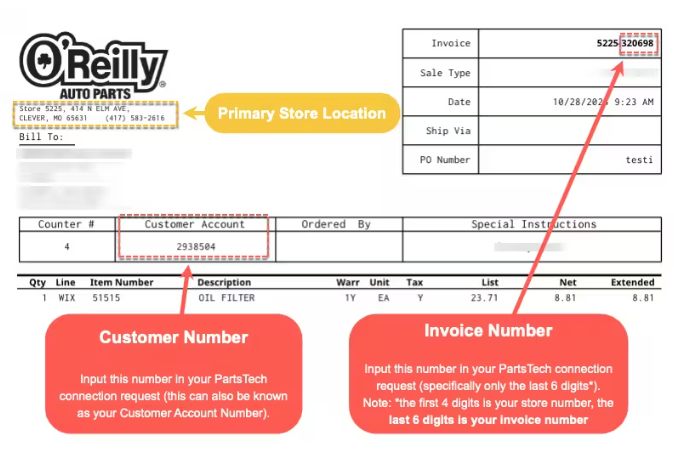
Once you have your account number and invoice number, head to the Supplier Map in PartsTech to find your Primary O’Reilly store. You can find your primary store location 3 ways:
- Searching for your O’Reilly store by zip code
- Typing in ‘O’Reilly Auto Parts’ into the search bar
- Scroll through list of locations below the map
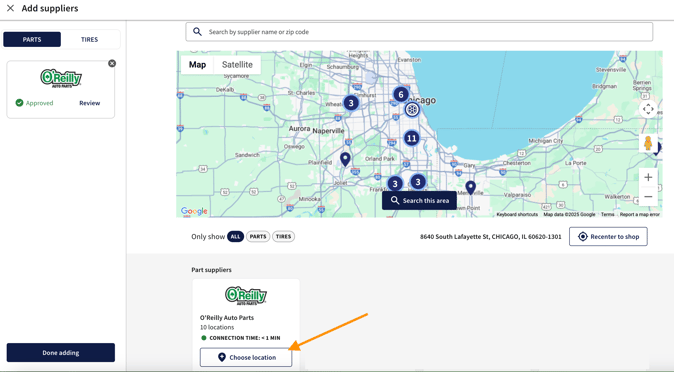
Step 2: Connect To Your Primary Store
Once you find your Primary Location, click the “Add” button to open the “Add Supplier” window.
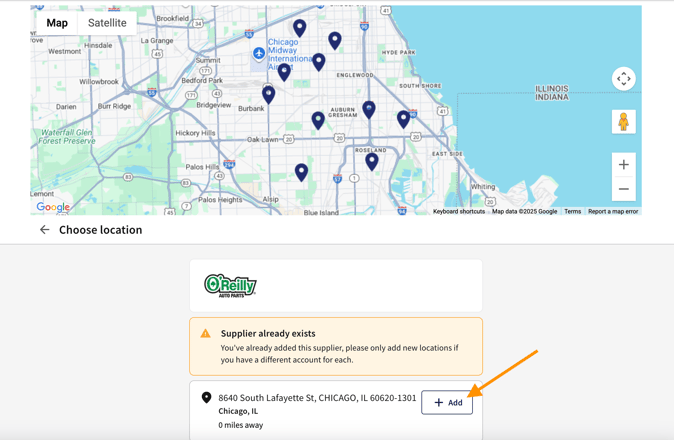
In the “Add Supplier” window, you’ll need to provide two key pieces of information:
- Your O’Reilly Auto Parts Customer Account number
- An invoice number from a recent purchase
/Application%20Screenshots/OReilly%20connection%20screen.png?width=350&height=389&name=OReilly%20connection%20screen.png)
Step 3: Verify Your Primary Store & Start Ordering
After you’ve entered your Customer Account Number and an invoice number, verify that the primary store on your invoice matches what you selected in the “Location” field. If they do not match, select the correct location and click the “Submit” button.
If your Account number and invoice number match the location, you will automatically be connected and see “Approved” as shown below. You can start ordering from O’Reilly Auto Parts via PartsTech.
.png?width=247&height=136&name=Screenshot%202025-09-25%20at%209.49.39%20AM%20(1).png)
/Landing%20Page%20-%20Cropped%20Images/PT_Shelves-with-parts_5D3_1650_1112x1114.jpg?width=1112&height=1114&name=PT_Shelves-with-parts_5D3_1650_1112x1114.jpg)
Connection “Ready for Review”?
If the account number, invoice number, and/or location do not match the invoice, the connect will show as “Ready for Review.” At this time, O’Reilly Auto Parts will manually review and verify your credentials and enable the connection from their system. A rep from their team may reach out to you for additional information. To speed up the manual approval process, you can contact O’Reilly Auto Parts at (800) 934-2451, selecting “Option 2” when prompted. Mention that you are trying to order via PartsTech.